
Managing Portfolios and Projects
Portfolio™ is the command center, a "single pane of glass" that gives you access to look across all your properties and create, manage, automate, and analyze your building digital twins with PassiveLogic tools.
The same digital twin is used throughout the building lifecycle, from design through simulation, commissioning, and deployment. Each software product is a different lens into the same knowledge graph that is always kept up-to-date.
Viewing portfolios and projects
In Portfolio you can see all your building projects organized into portfolio groups, with an indicator for whether the project is still in design or has been deployed.
Included are buildings created by scanning in the Lens™ iOS app or by clicking a product logo in the column at left to make a new project. You are also provided with example projects when you create an account. Projects shared with you also appear in your Portfolio list.
Here are three ways to view:
-
Left panel: When you open Portfolio, there's a list on the left, with expandable portfolio "drawers," like a folder. Each portfolio has a bubble next to the name, displaying the organization name (or abbreviation) that it belongs to. Click the caret
on the portfolio drawer to view its associated projects. Each project shows whether its already Deployed or one of your Designs.
-
Middle panel: When you select a portfolio drawer on the left, the middle panel displays the projects in that portfolio, with Deployed buildings first and Designs second.
-
Location tab: When you click the Location tab at the top, you see and select your projects in geographical context.
Project card
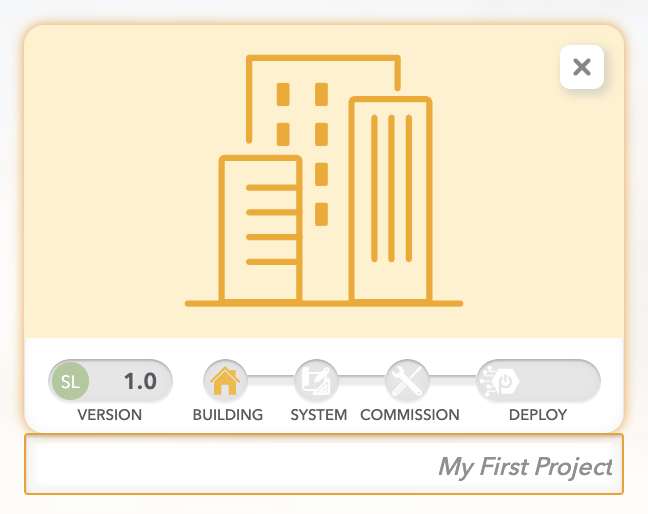
Portfolio displays a Project card for each project. It shows the name of the project and its stage in the project pipeline at the bottom.
For example, this project is at the beginning of the project pipeline, in the design phase.
The following image shows a project that has been deployed, so the whole project pipeline is filled in. The lock icon is displayed because a deployed building is operational and can’t be edited. However, you can select this building and view data from sensors in the Live product's Analysis mode: Select the project, and then click Live to open > click the Analysis tab after the project opens.
Working with portfolios and projects
Creating portfolios and projects
Click in the lower left corner to add a new portfolio. Click a product logo on the right to add a new project.
In the Lens iOS app you can also create new portfolios or building projects, and create new building scans. They will be displayed in the project list in Portfolio. See “Working with portfolios and buildings.”
Renaming portfolios and projects
You can rename any of your projects or portfolios in Portfolio or in the Lens iOS app.
To rename a portfolio:
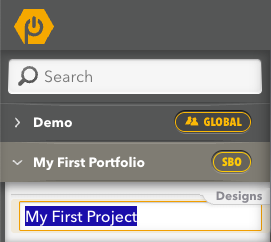
Double-click the portfolio drawer name in the portfolio hierarchy window to make it editable.
To rename a project:
Double-click the name in the building project card or in the list on the left. If changing in the project card, make sure to press enter after typing the new name.
Editing a project
Each project card displays the logo of the product in which it was last opened. Double-clicking it is a shortcut to picking up where you left off, but you can also single-click for a fly-out of all the products you can use to open or edit this project. Or, just select the project and click a product on the right to open or edit.
Sharing a project
Select a project and click the upper right share icon. You will see a list of who has access, and you can click + to add other users using email address if you have Admin or Editor permission. To add multiple users, press enter after the first one.
Accepting an invitation to an organization
If another PassiveLogic user invites you to their organization by entering your email address, you will receive an email with a link to accept. Make sure to use the Chrome browser, copying the link and pasting into Chrome if it's not your default browser. If you don't have a PassiveLogic account, you'll be asked to create one.
Duplicating a project
Select a project, then click the Duplicate icon . If you don't have Admin or Editor permissions in that same portfolio, you are asked to choose a portfolio where you want the duplicate project to be created.
Deleting portfolios and projects
If desired, you can delete a portfolio or a project that is in design. (You can also delete them in the Lens app.)
Warning: Deleting projects can't be undone. You will need to ask PassiveLogic whether they can help you recover a deleted project.
To delete a project:
- Select the project.
- Click the Delete icon
. Proceed only if you are very certain you want to delete.
Note: You will see a warning, as you cannot retrieve deleted projects by yourself at this time.
To delete a portfolio:
A portfolio is like a folder used to organize projects.
To delete a portfolio, you must first individually delete all the projects inside it. Deleting the last remaining project also deletes the portfolio.